The Title Bar
Your status hub at the top of the app. It displays the name of the dice table you are currently participating in, a count of nearby players, and your global player display name.
Tap the table name, initially Public Square, on the left to manage your dice table and its players.
Tap your player name, or the gear icon, to open up the app settings. In there you'll find the visual customizations for the app.

The Dice Box
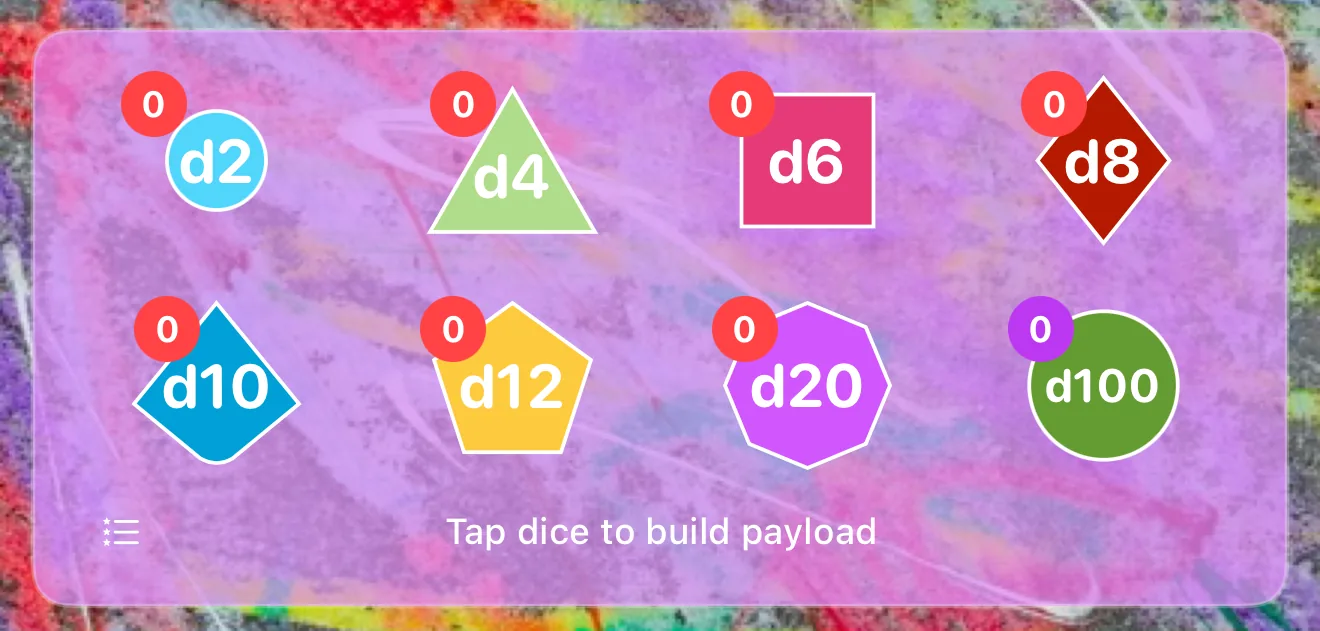
The launching pad for your rolls. Tap a die to add one to your roll, or double-tap to add ten at once. Need to drop a die? A long-press on a die removes one. A quick horizontal swipe across the dice clears the box so you can start from scratch. On Mac, click, double-click, and long-click do the same.
Ready to roll? On iPhone and iPad, drag down anywhere on the box, tap the roll description at the bottom of the box, or just shake your device. On Mac, click Roll, or Clear to empty the box.
On Mac, and on iPad held sideways, the bar across the top of the Dice Box rolls the box up out of the way to give your Saved Dice Rolls more room. Tap or click it again to bring the box back.
Saved Dice Rolls
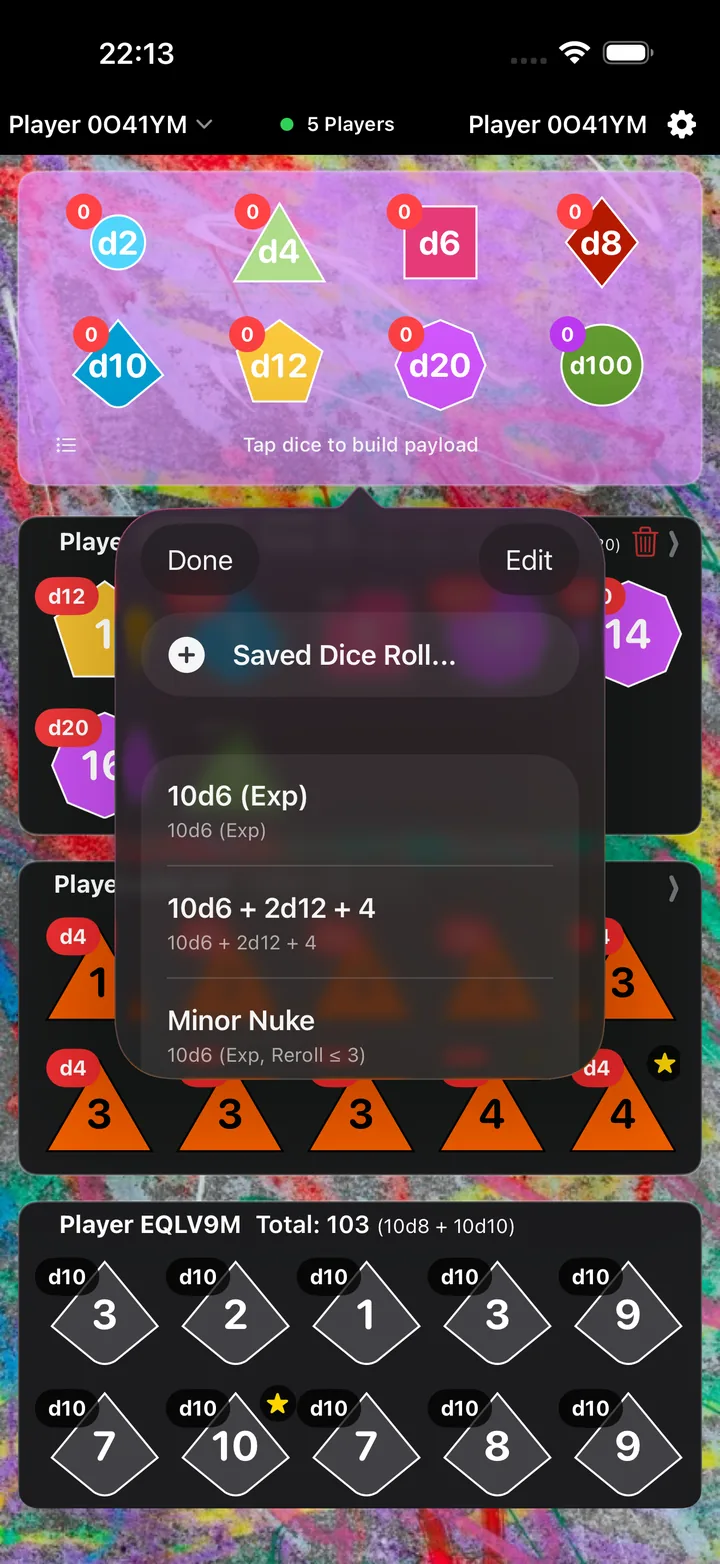
A Premium feature for the rolls you make over and over, like Fireball or Sneak Attack. Name them once, then tap one to roll it instantly. On iPhone, open them with the list icon in the lower left of the Dice Box, or by long-pressing the box (not a die). On iPad and Mac they sit right beside or below the Dice Box.
Every saved roll can add a constant modifier, plus:
- Rerolls: automatically reroll dice that land on or below a number you choose.
- Critical Hits: set your own critical hit range.
- Exploding: dice that roll a critical hit roll again, with an optional limit on how far they chain.
- Advantage/Disadvantage: roll two matching dice and keep the higher or lower one.
- Drop Lowest: leave the lowest dice out of the total, like rolling 4d6 and dropping the lowest one.
Advantage/Disadvantage and Drop Lowest can't be used together, so turning one on makes the other unavailable.
Give each saved roll a Background and Words color to color-code a long list. Tap Edit to drag them into a new order, or to edit and delete them. On iPhone you can also swipe a saved roll to pin, edit, or delete it. A pinned roll stays loaded in the Dice Box after every roll.
The Dice Tray
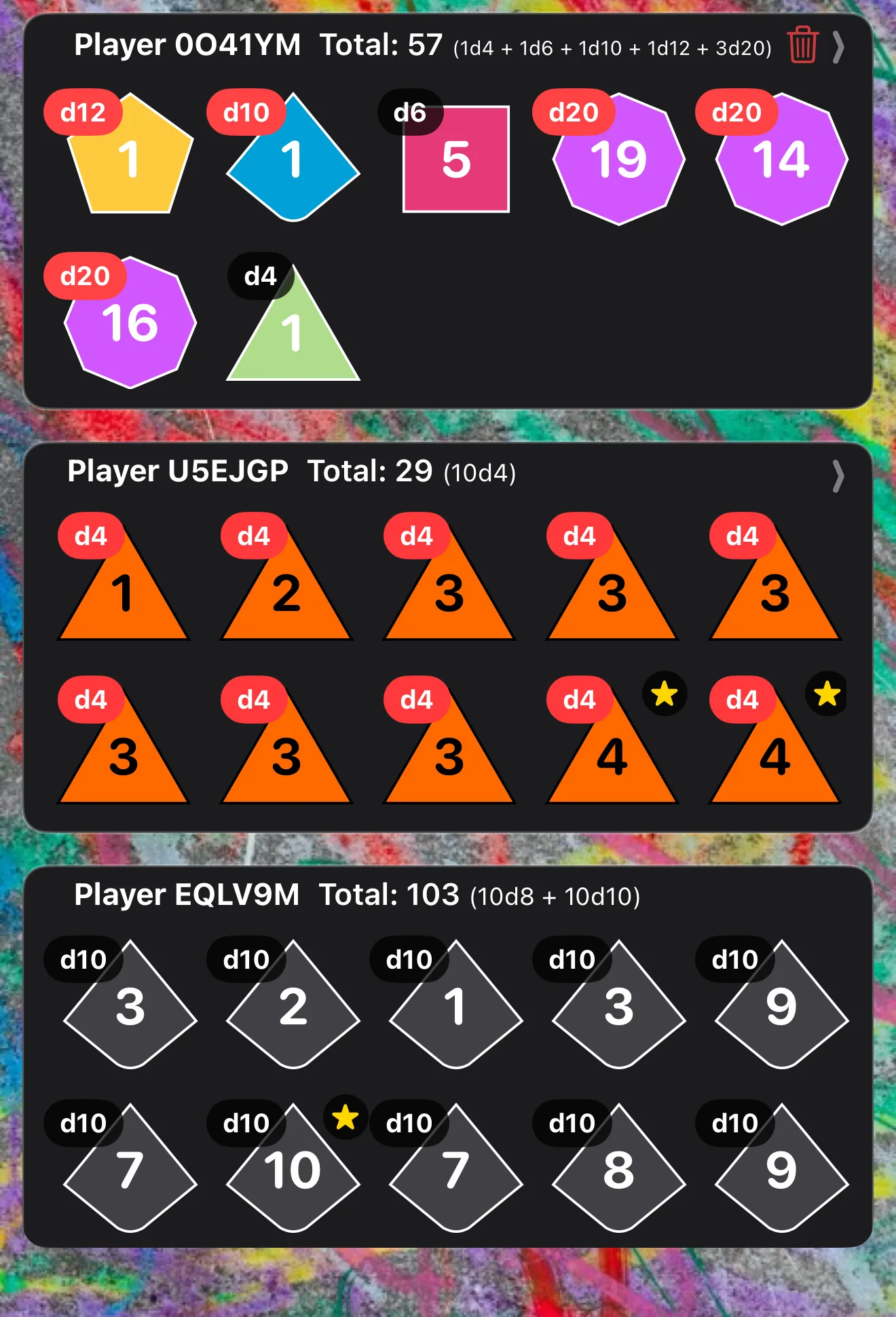
Your table's real-time roll feed. Every roll from you and your tablemates lands here, animated as it tumbles in. Dice that don't count toward the total, from Advantage, Disadvantage, or Drop Lowest, are cleanly struck out, while critical hits, rerolls, and exploding dice are tagged with their own icons so the entire room can track the moment.
With Premium, swipe left or right on a dice roll to see the history of dice rolls for that player. You can delete your own rolls with the red trash icon, and a table's host can delete any roll at their table. Careful, it does not ask for confirmation! The title for the dice roll shows you what the dice roll configuration was when it was rolled.
Premium Features
🎨 Visual Customization
Express yourself! Adjust the number of dice per row to fit your visual needs. Pick colors for each die type, including face, border, text, and badge colors. You see everyone's dice rolls at the size you selected, but in each player's own colors. Beware of FOMO!
💾 Saved Configurations
Construct complex dice rolls for your signature abilities. Save recurring dice roll configurations that include modifiers, rerolls, critical hit ranges, exploding dice, advantage/disadvantage, and drop lowest, color-coded however you like. Don't see what you need? Tap Send Feedback in Settings and let me know what's missing.
📜 Dice Roll Histories
Review the historical log of the game. Scroll horizontally through player-grouped timelines to audit dice rolls or relive exciting moments, all without cluttering the screen.
How Dice Tables Work
By default, you start out rolling in the Public Square—a shared local space where anyone sitting near you can see your rolls. To play a dedicated campaign session, Premium hosts can move their party onto their private dice table, with full control over who can be there:
Opening your table advertises across the local mesh network space. While your table is open, other players will see it as available to join.
Nearby players who join your dice table will only see rolls from other players at your dice table. Rolls will be isolated from the Public Square.
Once your entire adventuring party has checked in, toggle the dice table's lock. Once locked, your table will disappear from discovery, so no one else can interrupt your game.
After you lock your table, you gain the ability to rename your table, yourself, and all the players at your table. As a Game Master, you can customize your dice table to your gaming session. Those names are only shown while the table is locked. If you unlock it to let someone new in, everyone goes back to their generated names until you lock it again.
Frequently Asked Questions
Do I need an internet connection?
Rolling itself never needs the internet. Once the app is running, dice rolls travel directly between the devices at your table over Bluetooth and peer-to-peer Wi-Fi. You don't need a Wi-Fi network, and your rolls never go through a cloud server.
Why did the app automatically generate a name for me?
The other reason is to prevent social attacks using player names. It is unfortunate we have to account for this behavior, but we do. That is why everyone is given a generated name. There is an exception to this...